5.0 အသစ်
အသွင်သစ်ဖြင့်ဆန်းသစ်လာသော Bible Pro
အသုံးပြုရလွယ်ကူပြီး လုပ်ဆောင်ချက်စုံလင်သောအခမဲ့ ၀တ်ပြုခြင်း APP
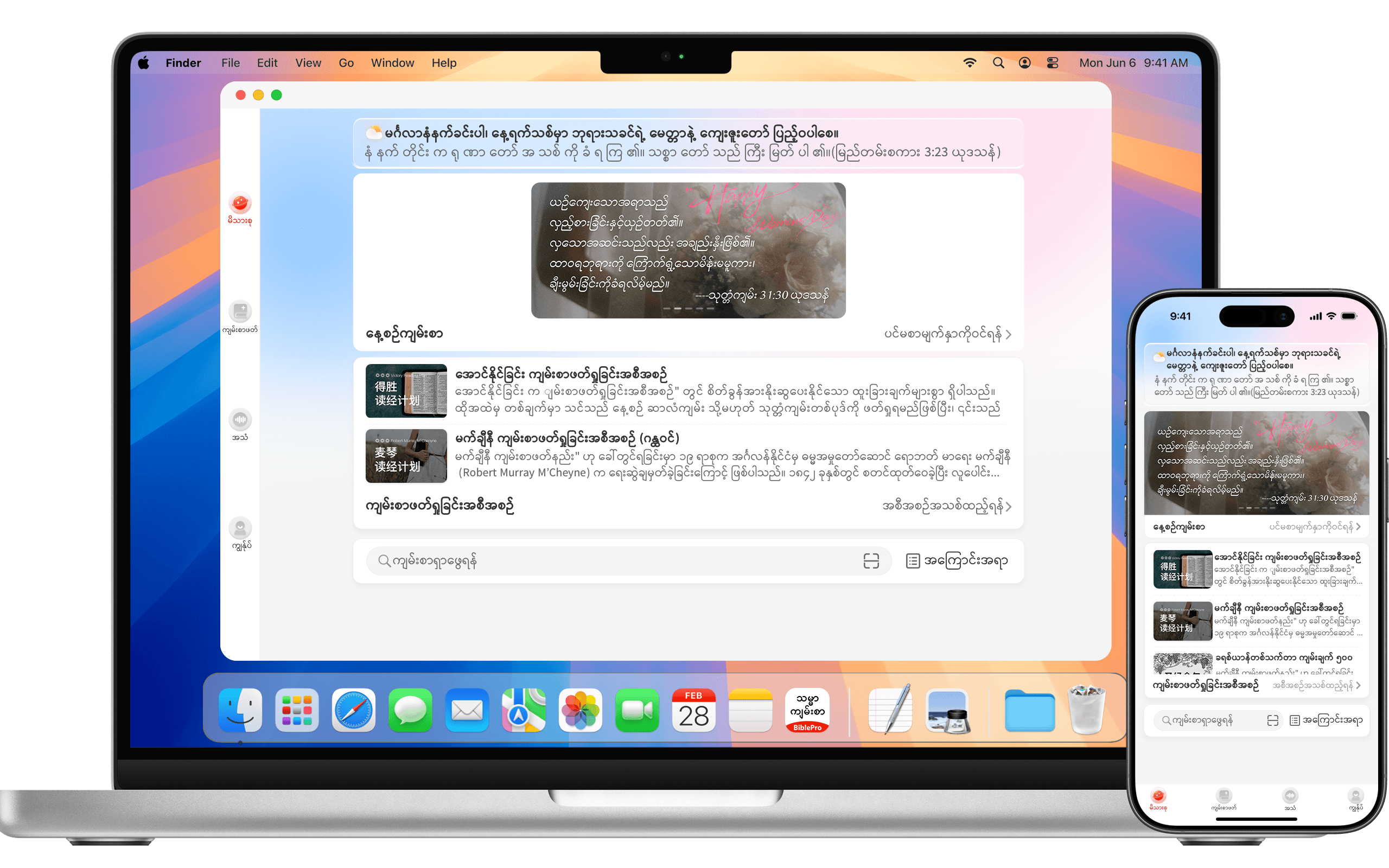
အသုံးပြုရလွယ်ကူပြီး လုပ်ဆောင်ချက်စုံလင်သောအခမဲ့ ၀တ်ပြုခြင်း APP
ပြည့်စုံသောကျမ်းရှင်းလင်းချက်များ၊ သမ္မာကျမ်းစာအဘိဓာန်မျိုးစုံ၊ ဟေဗြဲ/ဂရိ မူရင်းကျမ်းစာသားနှင့် သဒ္ဒါ — တစ်ချက်နှိပ်ရုံဖြင့်လွယ်ကူစွာရှာဖွေနိုင်သည်။
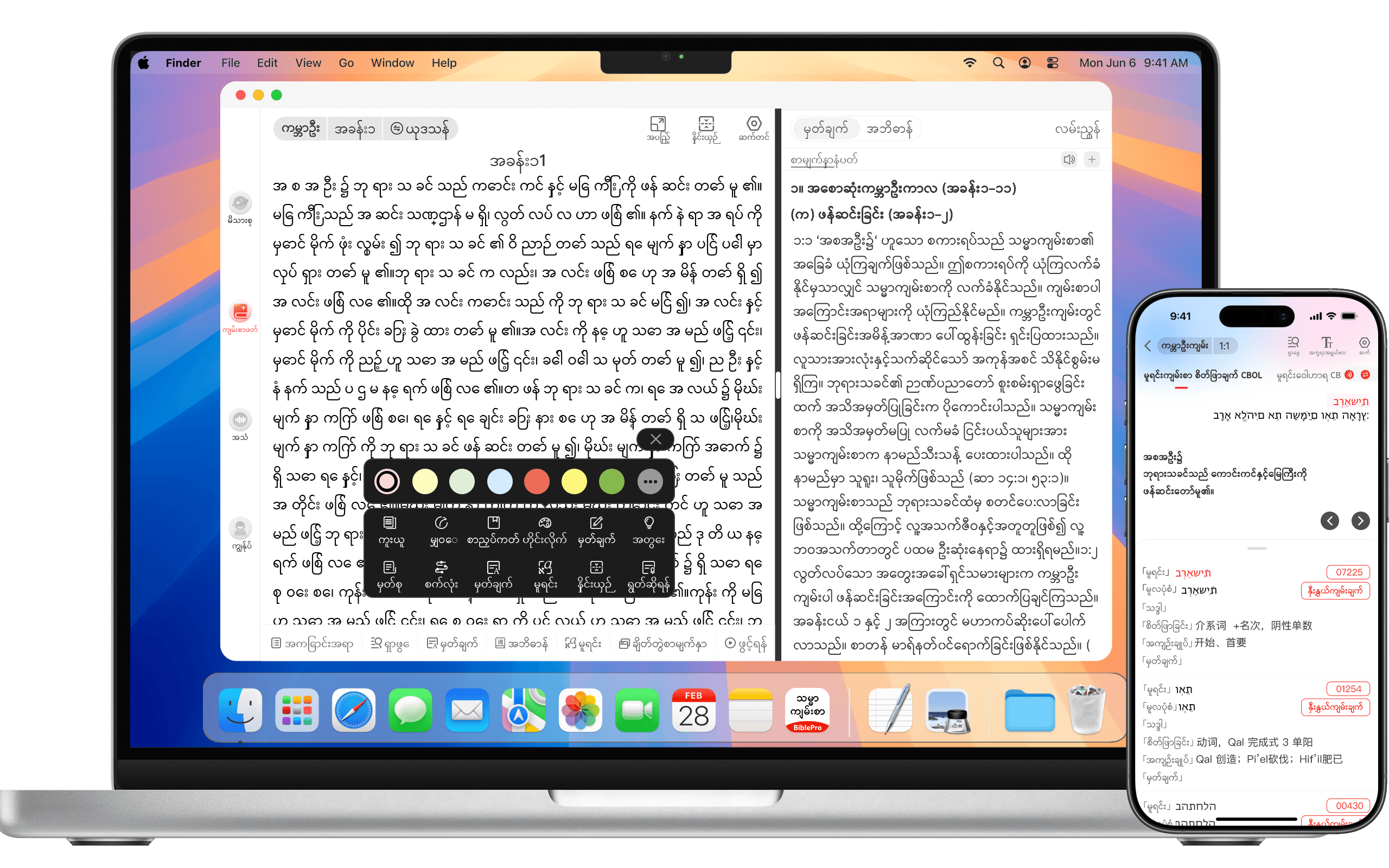
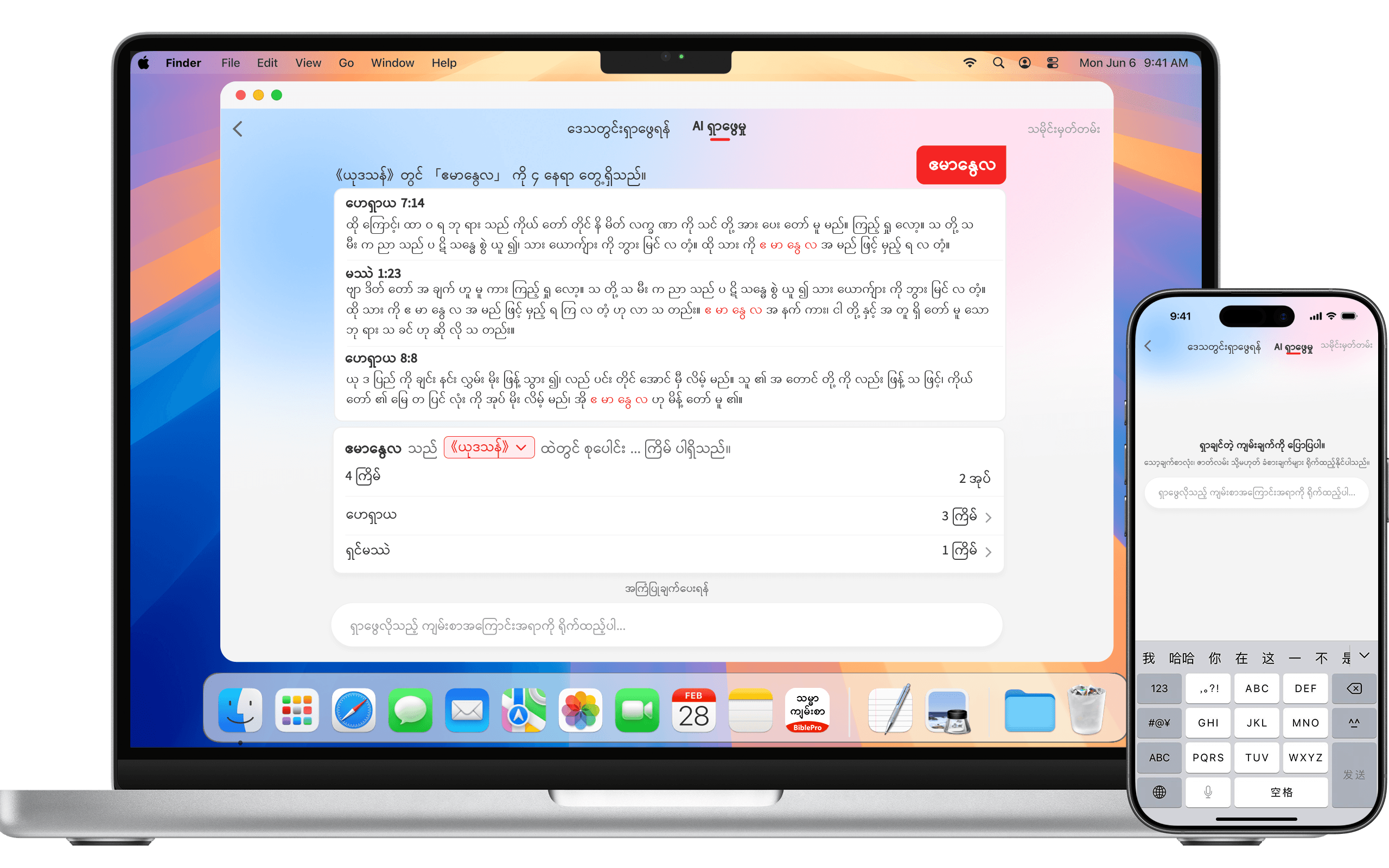
ကိုးကားအညွှန်း မလိုပါ — ရိုးရှင်းသော စာကြောင်းတစ်ကြောင်းဖြင့် သင့်လျော်ဆုံး ကျမ်းချက်ကို ရှာတွေ့ပါမည်။
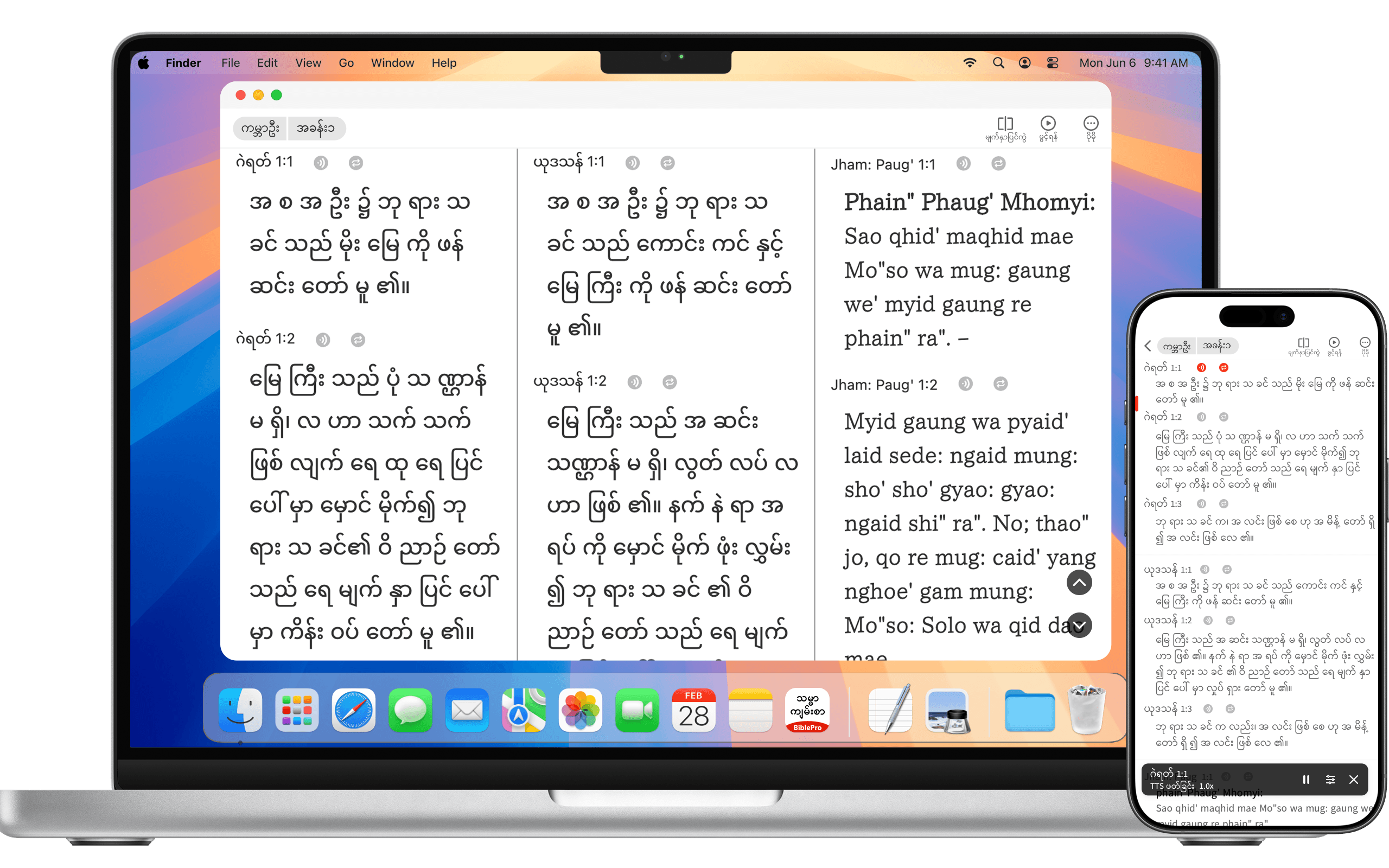
မတူညီသောကျမ်းစာအမျိုးမျိုးကို ဘယ်ညာခွဲပြီးမျက်နှာပြင်တစ်ခုတည်း၌ ယှဉ်တွဲဖတ်ရှုနိုင်ခြင်း၊ရှင်းလင်းလွယ်ကူစေသောကြောင့်ပိုမိုအာရုံစူးစိုက်နိုင်ခြင်း၊
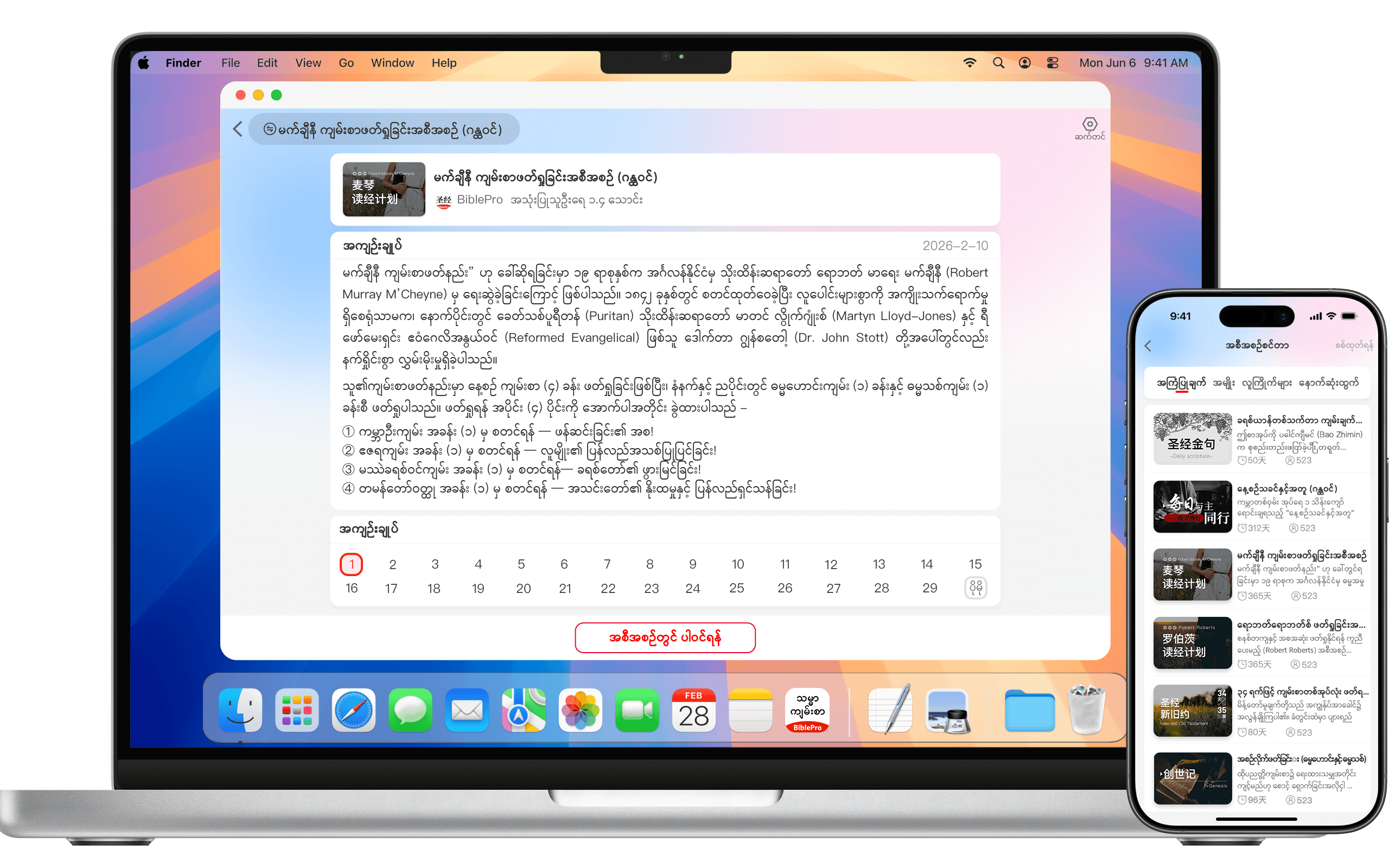
မိမိစိတ်ကြိုက်ဖတ်ရှုချိန်ကိုသတ်မှတ်ပါ၊ တိုးတက်မှုကိုစောင့်ကြည့်ပြီး၊ သင်နှင့်သင့်တော်သော အစီအစဉ်ကို တည်ဆောက်ပါ။
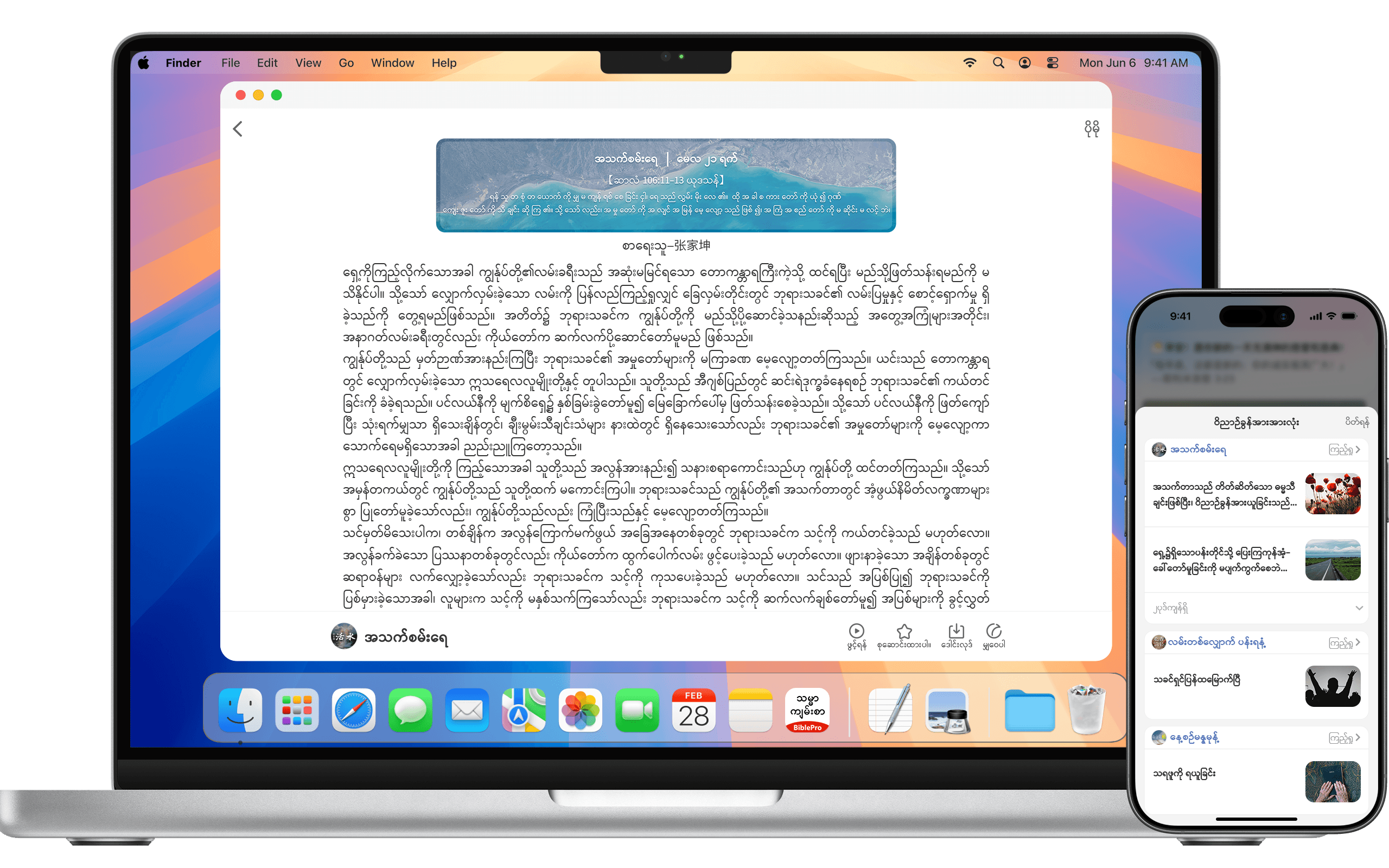
သင်နှစ်သက်ရာ ကဏ္ဌများကို စာရင်းသွင်း၍ မိမိအဖွဲ့နှင့်အတူ၀ိညာဉ်ရေးရာကိုအတူတည်ဆောက်ပါ။
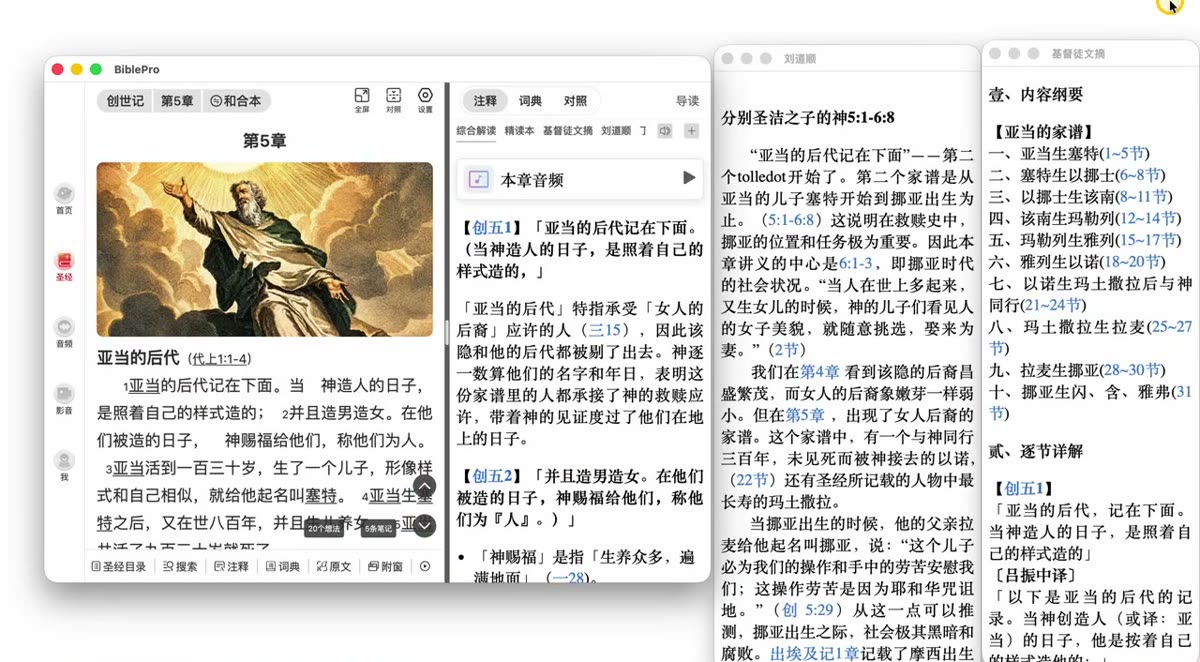

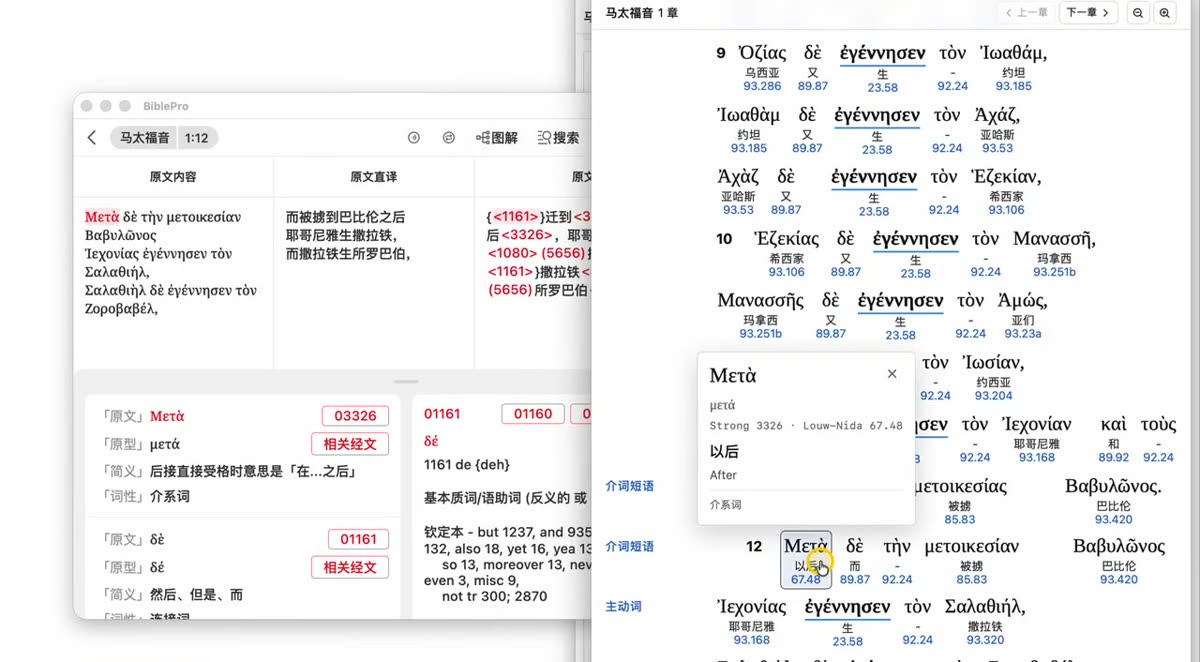
BiblePro Desktop 2.2.0 brings three major additions: annotations in multiple windows, diagrams for the biblical original text, and Projection. The 4-minute video below demonstrates all three (narration and on-screen subtitles are in Chinese); the written steps that follow cover the same ground.
Tap a timecode to jump straight to that chapter:
Annotations used to share the main window in a top/bottom split. Now each one can be torn off into its own window, so several commentaries sit side by side.
Ideal for a large or dual monitor: Scripture in the main window, with the comprehensive commentary, study edition and other annotations lined up beside it.
The Original Text module gains a Diagram section that draws the syntax of a verse — main clause, modifiers and parallel structures at a glance.
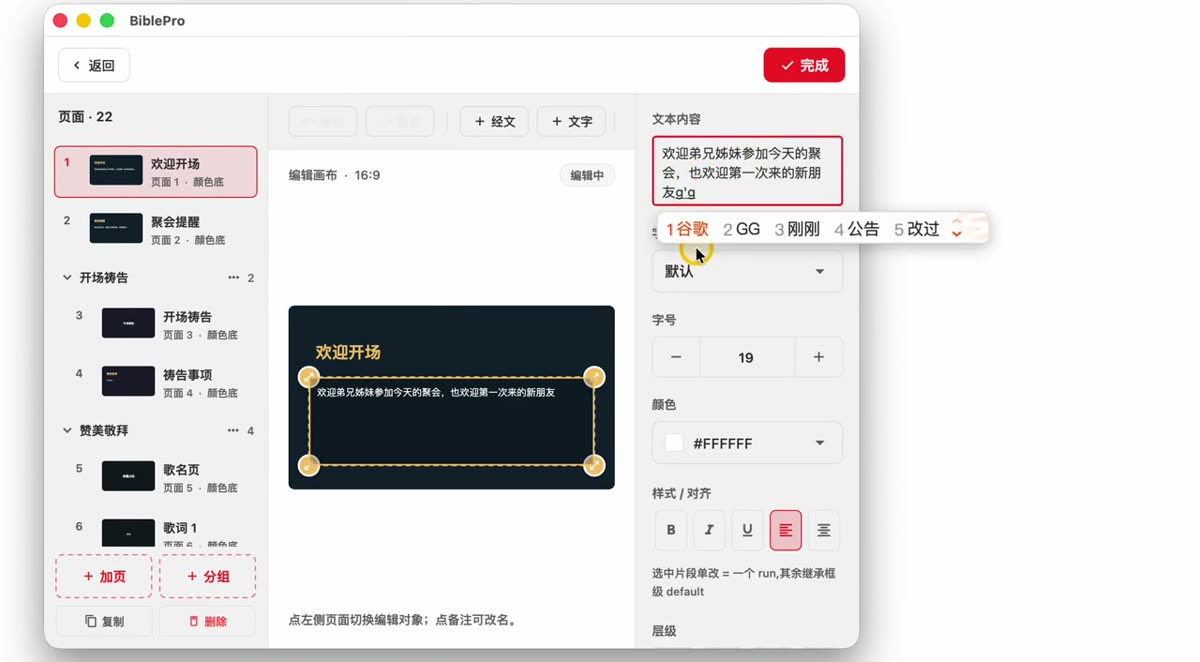
Projection is the headline feature of 2.2.0 — built for meetings, Bible study groups and Sunday worship. It works in two ways: projecting Scripture and building custom slides.
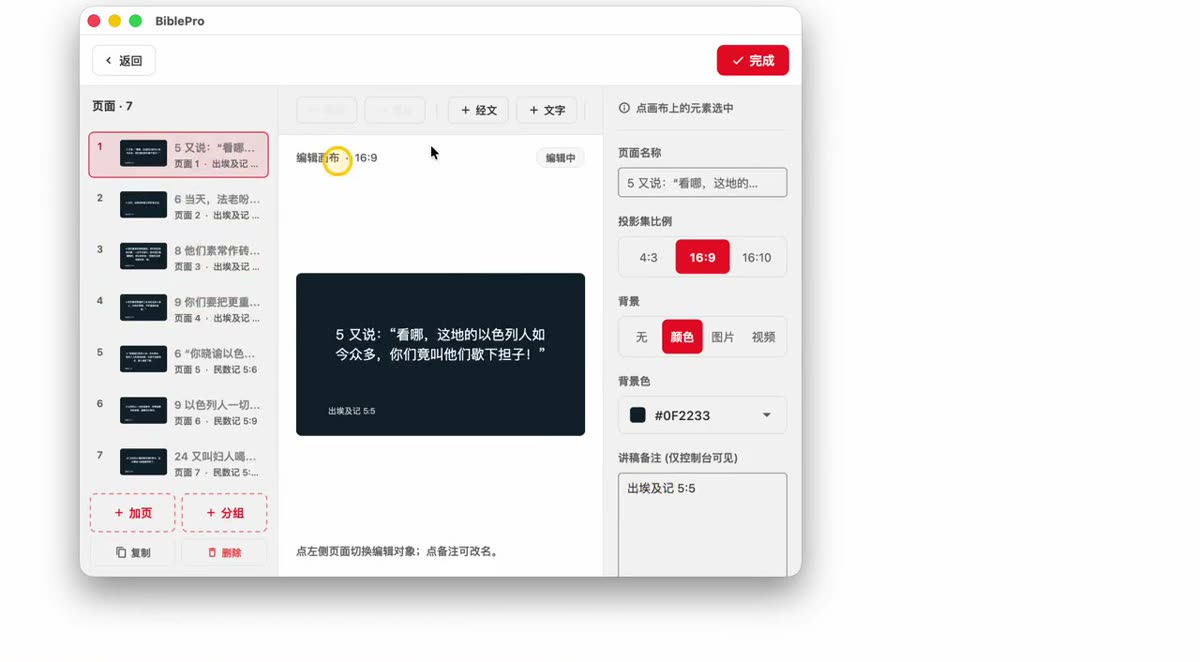
Beyond Scripture, you can build slides for welcomes, prayer items and hymn lyrics.
| Action | What it does |
|---|---|
| ↑ ↓ or ← → | Previous / next page |
| ESC | Exit projection |
| Editing a page | You can keep editing during projection — the projected screen updates automatically |
| Blackout | Blank the projected screen at any time (handy between segments) |
These features require Desktop 2.2.0 or later (Windows / macOS). Click Download on the home page for the latest installer; the full list of changes is in the changelog.
Traditional Bible search requires you to remember keywords or references. AI semantic search doesn’t.
When offline, BiblePro automatically falls back to local keyword search—results remain useful.
Two ways to install on Android:
Phones sold in mainland China ship with built-in “app safety scan”, “pure mode”, and “store certification” guards that often block APKs not published on a local store. Below is brand-specific guidance—exact wording differs by OS version, but the idea is the same.
All BiblePro builds are signed and distributed by the developer team. Email bibleproinfo@gmail.com if you need help.
Desktop is the best platform for split-pane parallel reading, deep study, and group reading plans. Two install paths: direct installer download (fastest) or app store (auto-updates).
BiblePro.Windows.x.x.x.exeInstallers are code-signed, so SmartScreen warnings almost never appear. In rare cases, if “Windows protected your PC” pops up, click More info → Run anyway.
Click Open Microsoft Store for one-click install with automatic updates.
Minimum: Windows 10 64-bit, version 1809 (build 17763) or higher.
The app itself is only tens of megabytes. Installing to a non-system drive (D / E) triggers UAC admin-permission prompts on every launch—a poor experience. So we install the program into the C drive system directory by default.
What actually takes space is data files: Bible translations, commentaries, dictionaries, audio, video. BiblePro separates “program” from “data”—you can move the data storage path to any disk via “Settings → Storage Management” inside the app.
If your PC doesn’t meet the requirements, install an Android emulator and use our Android version:
| Emulator | Download |
|---|---|
| BlueStacks | bluestacks.com |
| LDPlayer | ldplayer.net |
BiblePro.macos.x.x.x.dmg.dmg, drag the BiblePro icon to the Applications folderInstallers are signed with Apple Developer ID + Notarized, so they launch directly in almost all cases. If “BiblePro can’t be opened because it’s from an unidentified developer” appears, Control-click the app icon → Open, or go to System Settings → Privacy & Security and click “Open Anyway”.
Click Open Mac App Store for auto-verified signature and auto-updates.
If your macOS is below 12 Monterey, use an Android emulator:
| Emulator | Download |
|---|---|
| BlueStacks for Mac | bluestacks.com/mac |
Desktop shares the same account system with iOS / Android. Notes / bookmarks / reading plan progress sync across devices automatically. Desktop-only features: split-pane parallel (up to 4 translations), companion windows for commentary / dictionary / original, keyboard shortcuts, extra-large font, bulk copy / export.
xattr -d com.apple.quarantine /Applications/BiblePro.appပလက်ဖောင်းအားလုံးတွင် ချိတ်ဆက်ထား — ထည့်သွင်းနည်း ရွေးပါ။
သင့်ဖုန်းကင်မရာဖြင့် Scan လုပ်ပါ
iOS / Android ကို တိုက်ရိုက် ထည့်သွင်းပါ