BiblePro Desktop 2.2.0 brings three major additions: annotations in multiple windows, diagrams for the biblical original text, and Projection. The 4-minute video below demonstrates all three (narration and on-screen subtitles are in Chinese); the written steps that follow cover the same ground.
Video walkthrough
Playback speed:
1.00x
Tap a timecode to jump straight to that chapter:
What is new in this release
Annotations: open in a new window, compare side by side
Original text: open a diagram, inspect words, linked scrolling
Projection: send selected verses to the big screen
Projection: custom slides, templates and groups
Recap
1. Annotations in multiple windows
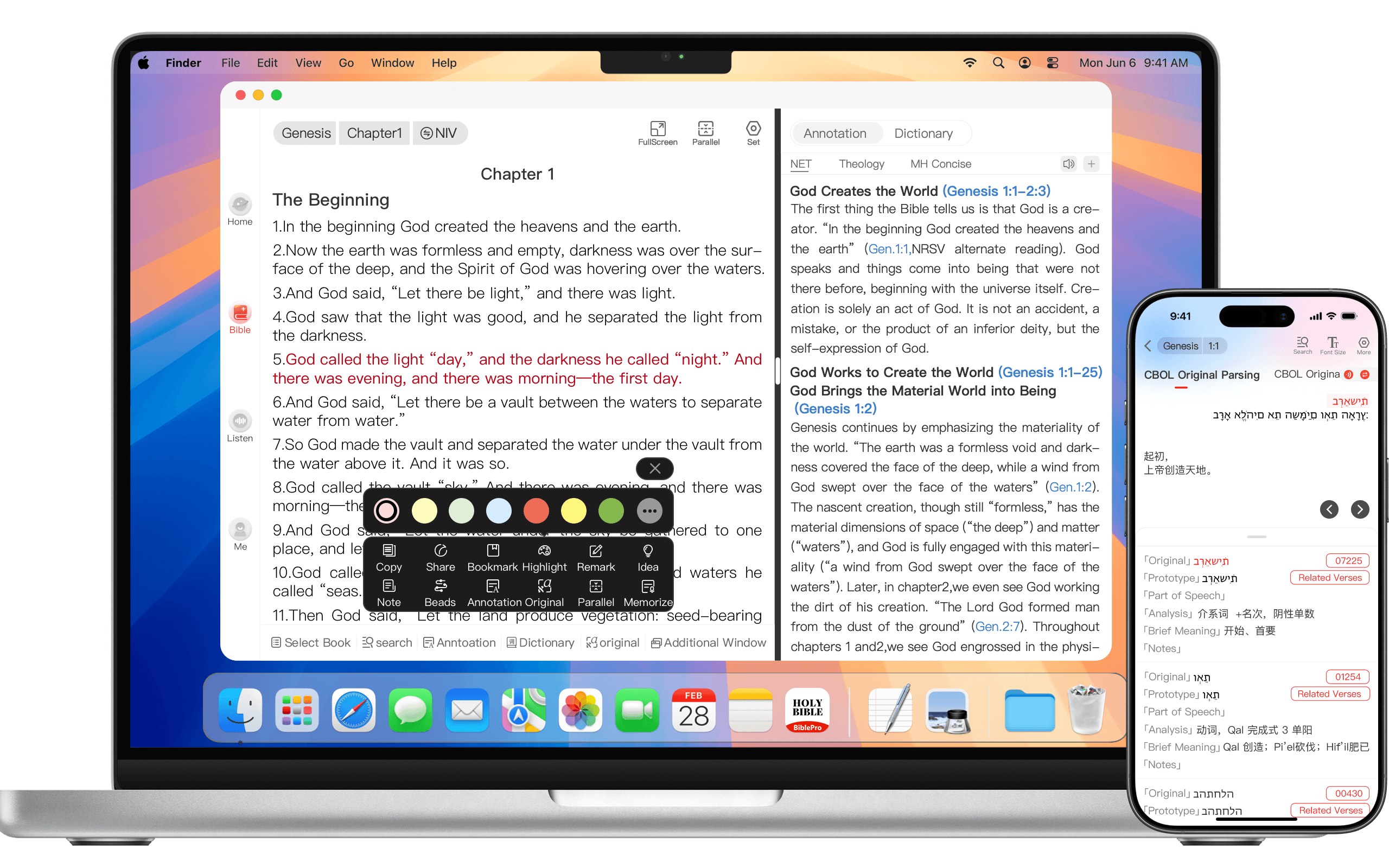
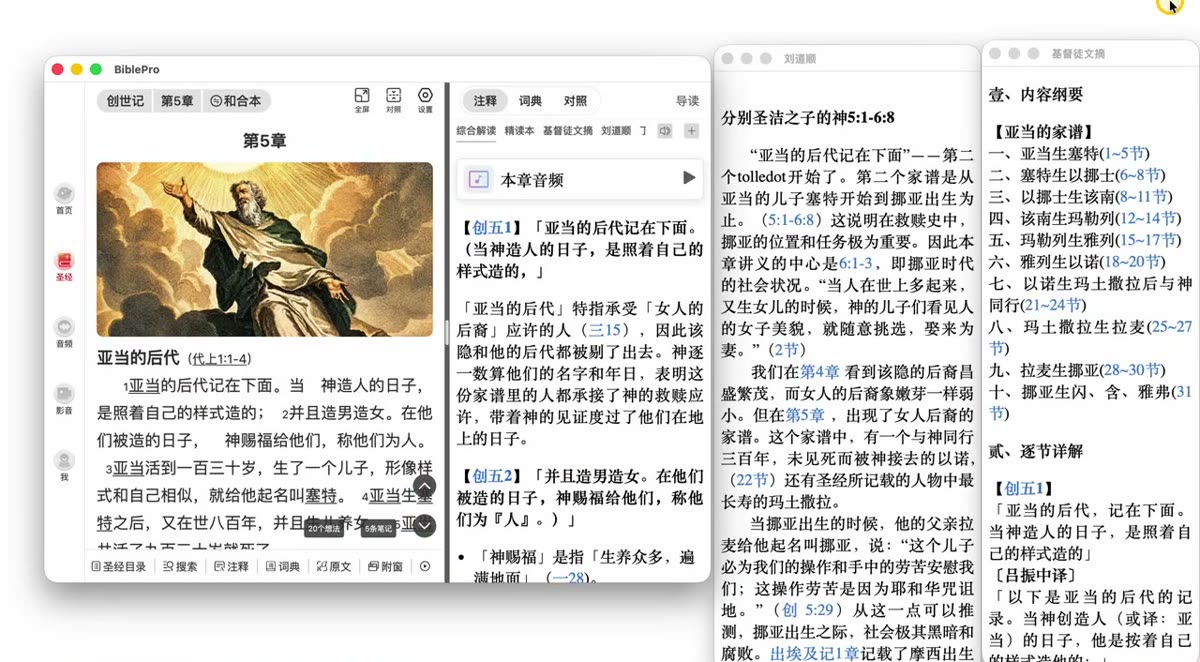
Annotations used to share the main window in a top/bottom split. Now each one can be torn off into its own window, so several commentaries sit side by side.
Open Annotations while reading
Right-click the name of an annotation
Choose Open in new window
Move and resize the new window freely — open as many as you need and keep them all on screen at once
Ideal for a large or dual monitor: Scripture in the main window, with the comprehensive commentary, study edition and other annotations lined up beside it.
2. Diagrams for the original text
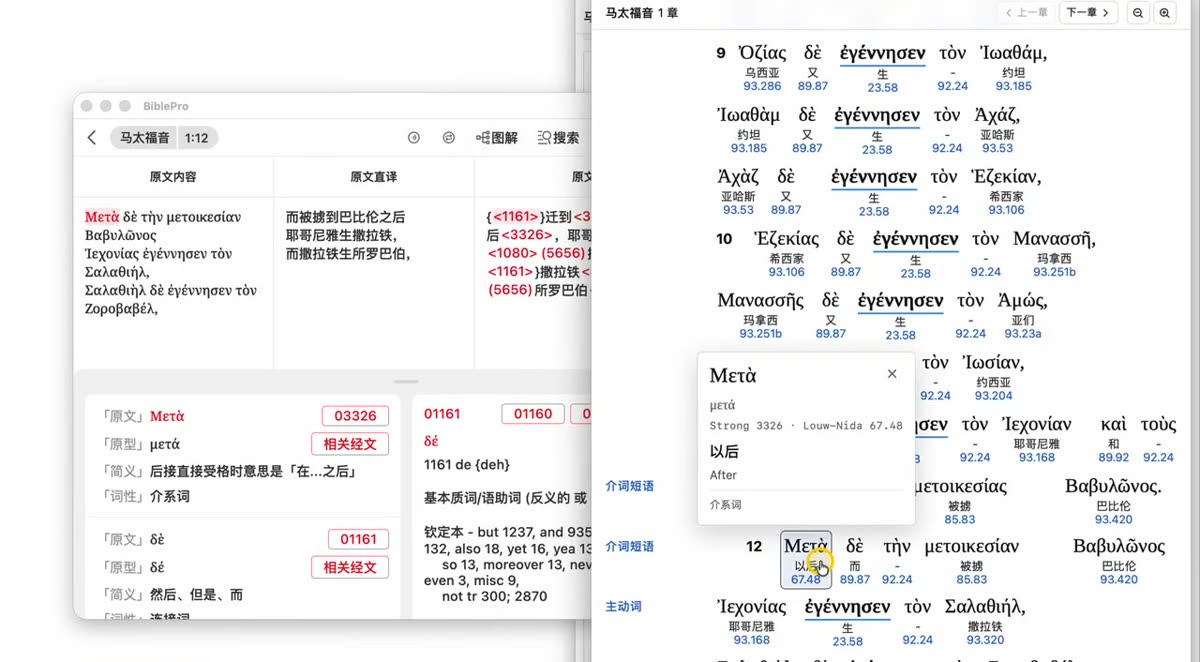
The Original Text module gains a Diagram section that draws the syntax of a verse — main clause, modifiers and parallel structures at a glance.
Open Original Text, then click Diagram at the top
Pick the diagram resource you want from the list and click OK
Once it opens, hover over or click any word to see its details (original form, lemma, gloss, part of speech, Strong’s number and more)
The two panes stay in sync: move to the next verse on the left and the right pane jumps to that verse automatically
You can open several different diagrams at once, and clicking a verse number inside a diagram moves the text on the left to match
Click a word for its gloss and Strong's number; both panes stay in sync
3. Projection
Projection is the headline feature of 2.2.0 — built for meetings, Bible study groups and Sunday worship. It works in two ways: projecting Scripture and building custom slides.
3.1 Projecting Scripture
Choose Projection in the bottom toolbar, or use multi-select in the Catalog
Tick the verses you want, click OK, then click Project
Choose how verses are paginated: one verse per page, or distribute automatically
With one verse per page you get a preview first — check it, then click Done
Pick the window to project onto (second display / projector) and click Start projection
Preview every page before you start; generated pages are listed on the left
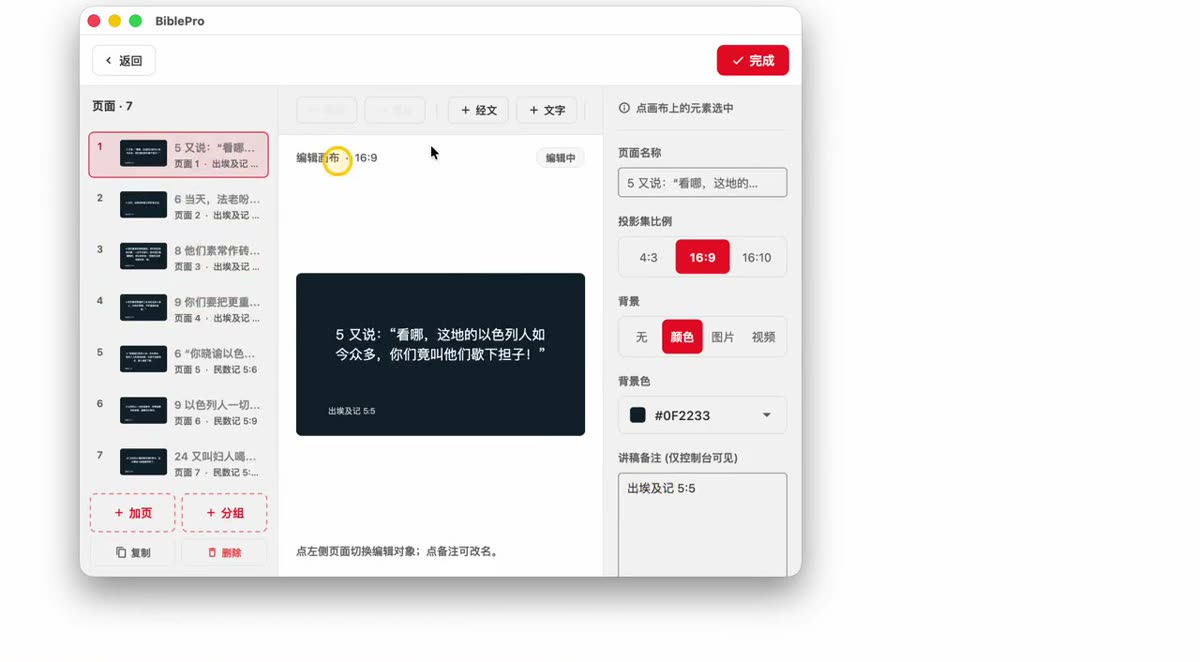
3.2 Custom slides
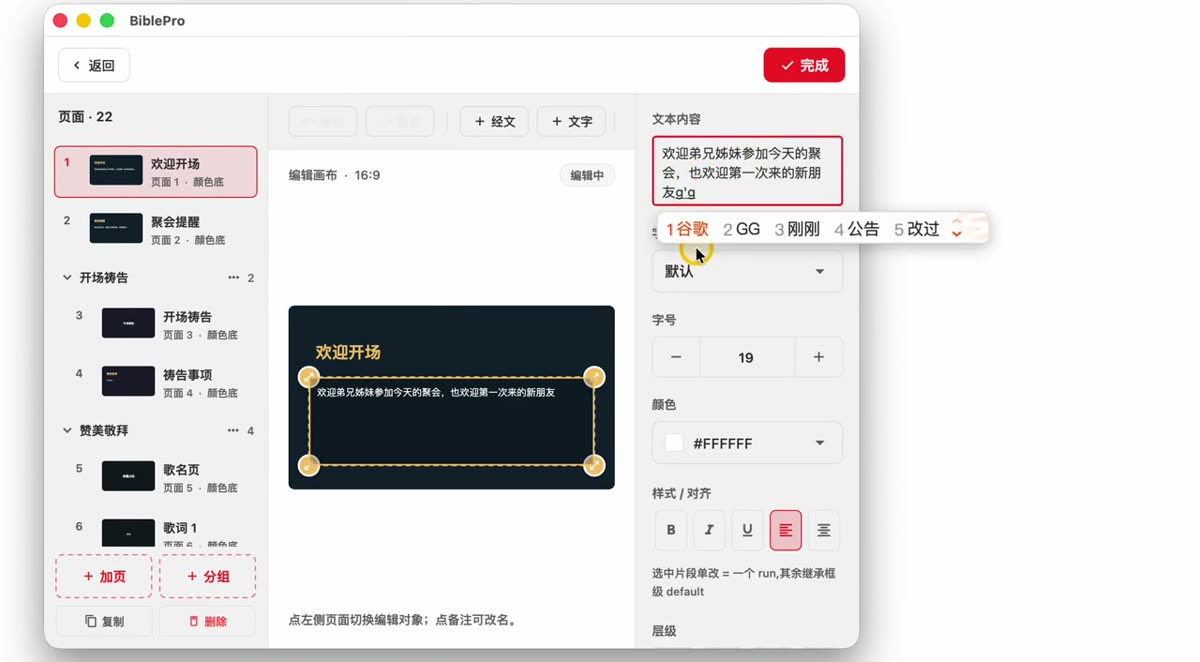
Beyond Scripture, you can build slides for welcomes, prayer items and hymn lyrics.
Open Projection from the bottom toolbar → create a new projection
Choose the aspect ratio (4:3 / 16:9 / 16:10), pick a template, then create it
Double-click the content to edit the text; you can also insert + Verse and + Text
Rename a page (for example to “Opening welcome”) so it is easy to find in a long list
Use groups to organise pages (for example “Opening prayer”, “Praise and worship”) and duplicate pages within a group
Set the background to a colour, an image or a video, and add speaker notes (visible only on the control console, never on the projected screen)
When the slides are ready, click Project
Rename, group and duplicate pages; backgrounds can be a colour, image or video
3.3 While projecting
Action
What it does
↑ ↓ or ← →
Previous / next page
ESC
Exit projection
Editing a page
You can keep editing during projection — the projected screen updates automatically
Blackout
Blank the projected screen at any time (handy between segments)
Which version do I need?
These features require Desktop 2.2.0 or later (Windows / macOS). Click Download on the home page for the latest installer; the full list of changes is in the changelog.
5.0 fully rebuilt the reading experience around one goal: keep you in the text, focused.
New scripture typography
Re-tuned line height, sizing and whitespace for long sessions
Clearer visual hierarchy for chapters and verse numbers
Contrast optimized for both light and dark themes
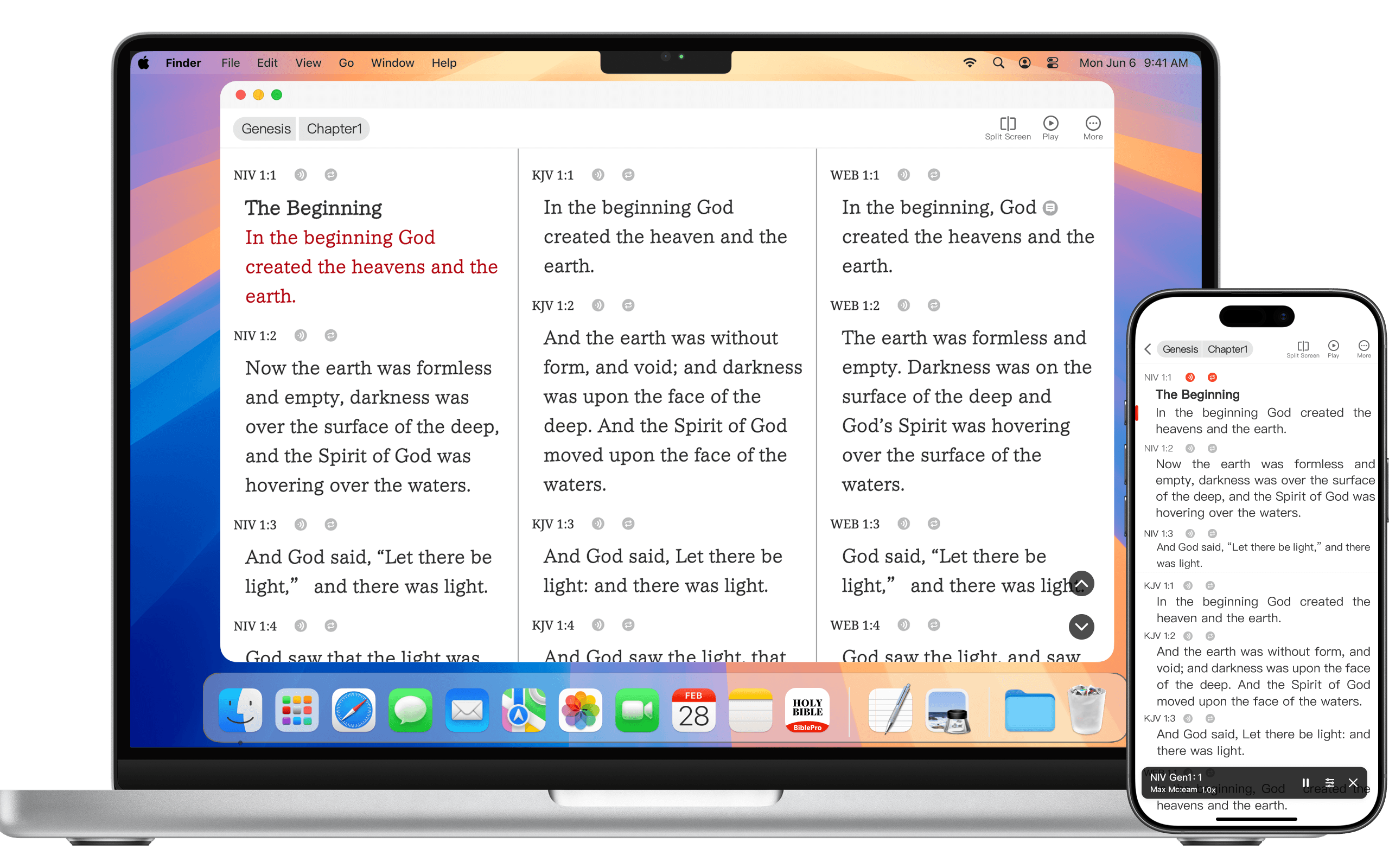
Side-by-side parallel
Open any two translations to scroll them verse-aligned side by side — excellent on desktop.
Reading settings sync across all your devices automatically.
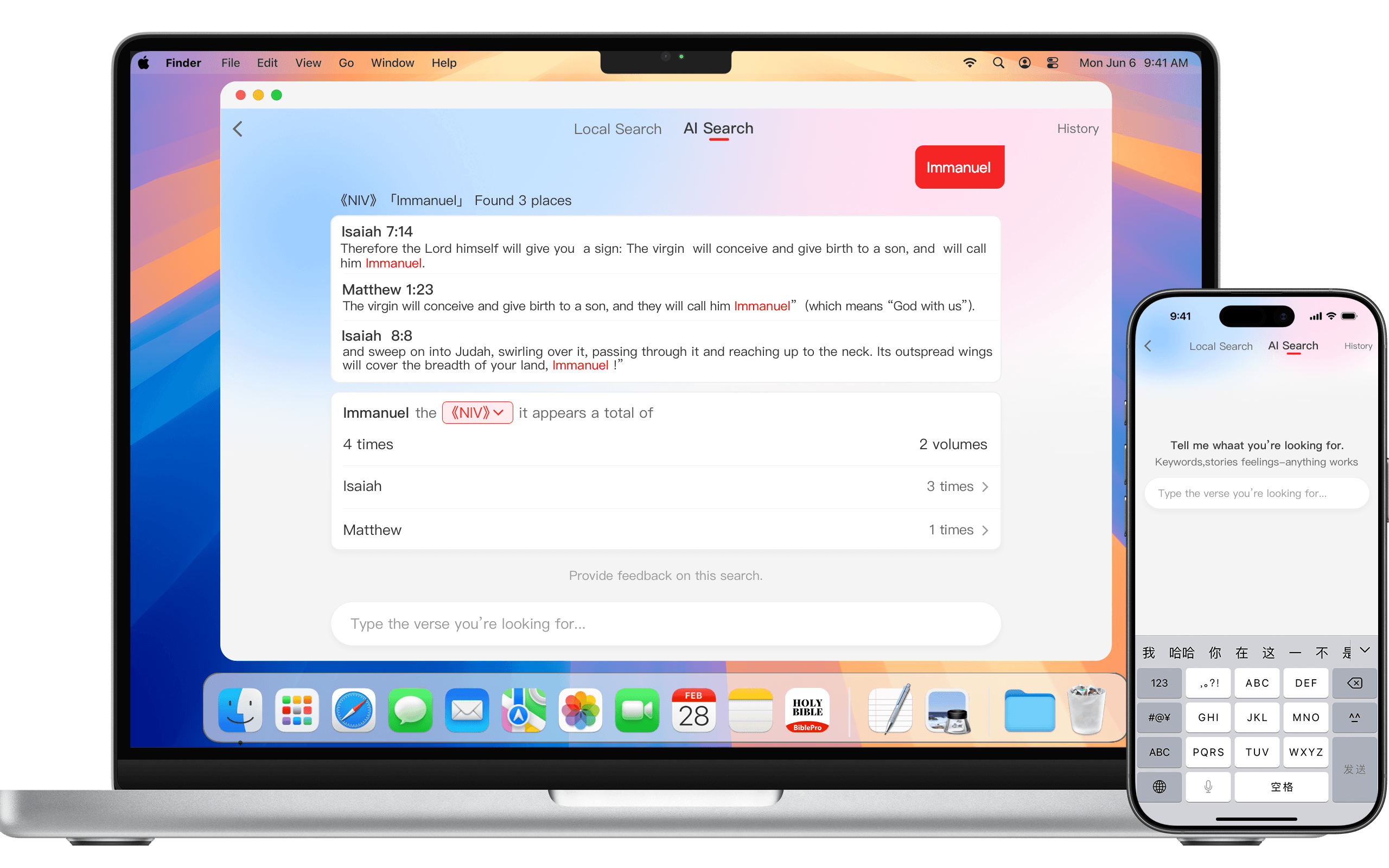
Traditional search needs keywords or references. AI semantic search does not.
How to use it
Open AI Search
Describe what you want, e.g. “verses about forgiveness and reconciliation”
AI matches the most fitting verses, with compare / original / commentary one tap away
Works offline
With no network it falls back to local keyword search, still usable.
Two ways to install on Android:
Browser download (APK): Tap Android · Browser download, then open the downloaded APK and follow the prompts (allow install from unknown sources if asked).
Google Play: Tap Open Google Play for one-tap install with automatic updates.
Tips for Chinese-brand phones
Phones sold in mainland China ship with built-in “app safety scan”, “pure mode”, and “store certification” guards that often block APKs not published on a local store. Below is brand-specific guidance—exact wording differs by OS version, but the idea is the same.
Huawei / Honor (HarmonyOS / EMUI / MagicOS)
When you see “Failed app market safety check”, tap More → Continue installation.
If it loops or freezes, turn off Wi-Fi and mobile data, then reopen the APK to install (offline mode bypasses pure-mode online verification).
Or temporarily turn off Settings → System & updates → Pure mode, then reinstall and turn it back on.
Xiaomi / Redmi / POCO (MIUI / HyperOS)
The prompt says “App failed certification”—tap the Settings / More icon at the top right (or Continue installation inside the dialog).
In “App installation service”, turn off Security check before install, or choose Allow this install only.
Some newer builds also need Settings → Apps → Manage apps → Permissions → Install unknown apps enabled for your browser / file manager.
OPPO / OnePlus / realme (ColorOS)
Choose Continue installation in the prompt.
If blocked: Settings → Additional settings → Manage app install sources / Install unknown apps → enable for your browser or file manager.
vivo / iQOO (OriginOS / FunTouch OS)
When prompted about risk, choose I understand the risk, continue installing.
If it still fails: Settings → More settings → Permission manager → Install apps → grant permission.
Some versions also have i Manager → Security → Install blocking that needs to be temporarily disabled.
Samsung (One UI)
Settings → Biometrics and security → Install unknown apps → enable “Allow from this source” for your browser or file manager.
Recommended to disable again after install for security.
Meizu (Flyme)
Tap Continue installation in the prompt.
If it hangs for a long time, temporarily turn off Settings → Security → App security scan, then turn it back on after install.
Other situations
Browser blocks the download with “this file may be harmful”: choose Keep / Download anyway.
File manager says “Can’t install”: use the system’s built-in file manager to open the APK (third-party file managers sometimes block).
Still failing: use Google Play instead. For users outside mainland China, Google Play is the preferred path.
All BiblePro builds are signed and distributed by the developer team; the APK on this page matches the official version. Email bibleproinfo@gmail.com if you need help.
Desktop is the best platform for split-pane parallel reading, deep study, and group reading plans. Two install paths: direct installer download (fastest) or app store (auto-updates).
Windows install
Method A · Browser download (recommended)
Click Windows · Browser download, get BiblePro.Windows.x.x.x.exe
Double-click to run the installer
Follow the wizard → Done
Installers are code-signed, so SmartScreen warnings almost never appear. In rare cases (new signing certificate not yet trusted, enterprise-managed PCs), if “Windows protected your PC” pops up, click More info → Run anyway.
Method B · Microsoft Store
Click Open Microsoft Store for one-click install with automatic updates.
Antivirus / Corporate machines
Some antivirus tools (Defender Enterprise, ESET, Norton, etc.) may block first launch. Trust and allow to proceed.
Domain-managed corporate machines without install permission: contact IT or use Microsoft Store instead.
Windows requirements
Minimum: Windows 10 64-bit, version 1809 (build 17763 / October 2018 Update) or higher.
Why does it install to the C drive by default?
The app itself is only tens of megabytes. Installing to a non-system drive (D / E) triggers UAC admin-permission prompts on every launch—a poor experience. So we install the program into the C drive system directory by default.
What actually takes space is not the program but data files: Bible translations, commentaries, dictionaries, audio, video. BiblePro separates “program” from “data”—you can move the data storage path to any disk via “Settings → Storage Management” inside the app (e.g. put audio / video on D / E / external drives). That’s the real space-saving approach.
Old PC / pre-1809 Windows fallback
If your PC doesn’t meet the requirements, we strongly recommend installing an Android emulator and using our Android version. The experience is nearly identical (large-screen, split view, keyboard shortcuts, parallel lookup—all work):
Install steps: install the emulator → open its browser → visit this page → download the Android Browser APK → install.
macOS install
Method A · Browser download (recommended)
Click macOS · Browser download, get BiblePro.macos.x.x.x.dmg
Double-click the .dmg, drag the BiblePro icon to the Applications folder
Find BiblePro in Applications, double-click to launch
Installers are signed with Apple Developer ID + Notarized, so they launch directly in almost all cases. In rare cases, if “BiblePro can’t be opened because it’s from an unidentified developer” appears, Control-click the app icon → Open, or go to System Settings → Privacy & Security and scroll to the bottom to click “Open Anyway”.
Method B · Mac App Store
Click Open Mac App Store for auto-verified signature and auto-updates—simplest option.
macOS requirements
Minimum: macOS 12 Monterey or higher
Apple Silicon (M1/M2/M3/M4) and Intel CPUs both supported (universal binary)
Old Mac fallback
If your macOS is below 12 Monterey, use an Android emulator + install the Android version:
Install steps: install the emulator → open its browser → visit this page → download the Android Browser APK → log in with the same account, data syncs via cloud.
First launch
Sign in with the same email / account (register on first run)
Resources (translations / commentaries / dictionaries / audio) are downloaded on demand from “Settings → Translation manager / Commentary manager”
Reading progress, bookmarks, notes, thoughts, and reading plan progress all sync automatically across devices
Relationship with mobile
Desktop shares the same account system with iOS / Android mobile:
Notes, bookmarks, thoughts, reading plan progress all sync across devices
Verses marked / notes written on your phone are immediately available on your computer
Desktop-only features: split-pane parallel (up to 4 translations side-by-side), companion windows for commentary / dictionary / original, keyboard shortcuts, extra-large font, bulk copy / export
Still won’t install / crashes on launch?
Uninstall the old version (Control Panel / drag from Launchpad), then reinstall the latest
macOS “file damaged” prompt: it’s a Gatekeeper quarantine attribute. In Terminal: xattr -d com.apple.quarantine /Applications/BiblePro.app
Still stuck? Email bibleproinfo@gmail.com with your OS version and screenshot—we’ll help.
Download now
Synced across platforms — pick how you install.
Scan to install mobile
Scan with your phone camera to install iOS / Android directly
2026-09-22 · Added Bible Catalog search and chapter images, fixed numerous known issues
Added search to the Bible Catalog (quickly find and open passages)
Added chapter images (can be turned on or off under Reading Settings → Advanced Settings)
Fixed numerous known issues and improved overall stability and performance
Desktop v2.2.0
2026-09-09 · Desktop: added Projection, annotations in a separate window, a Diagram section for original texts, and catalog search
Added Projection (accessible from the bottom toolbar and from multi-select in the Bible Catalog)
Annotations can now be opened in a separate window (right-click to open in a new window)
Added a new Diagram section to the Bible Original module
Fonts and font sizes can now be set independently for each Bible version
Added search to the Bible Catalog (quickly find and open passages)
Added chapter images (can be turned on or off under Reading Settings → Advanced Settings)
Added member management and grouping, plus one-time follow QR codes, to the Devotional Channel
Fixed numerous known issues and improved overall stability and performance
v5.0.10
2026-08-12 · Fixed frame drops while reading, annotations now show adjacent verses, added a reading plan widget and calendar reminders, enhanced Devotional Channels
Fixed frame drops and lag when reading the Bible
Annotations now support viewing previous and next verses
Added a Bible reading plan home screen widget
Different Bible versions now support independent font size settings
Added reading plan publishing and member management for Devotional Channels
Added reading settings for Devotional Channel content
Bible reading plans now support calendar reminders
Improved original text layout
Added multi-select support for My Highlights
Fixed known issues and improved performance
v5.0.3
2026-06-10 · New Reflections Circle, improved audio playback, and many fixes
Added Reflections Circle to the Devotional channel; articles now show who has read and who has checked in
Improved the audio playback experience
Fixed incorrect display of commentary sections
Fixed the “Search All” feature issue in the Dictionary
Fixed an issue where audio/video downloaded in older versions failed to display
Fixed an issue where questions and prayers from older versions failed to display
Scripture sharing now supports Dark Mode
Fixed incorrect image colors in Reading Mode
Fixed issues where original text could not be copied, and searching with spaces or underscores failed
Windows: Fixed installation failures on some computers
macOS: Fixed download failures on some computers
Fixed other known issues and improved performance
v5.0.0
2026-05-12 · New reading layout, AI search, word-level notes, and all-new media
Brand-new scripture reading layout, with paragraph display matching printed Bibles
New side-window feature: view more verses and commentary without leaving the passage you are reading
AI semantic search: locate verses with a single natural-language sentence
Word-level verse notes: tap a word to add a note
Aggregated dictionary search: search all downloaded dictionaries at once
All-new media: Bible audio, video, and devotional content fully upgraded, with support for building your own albums
In-depth study: commentary, dictionary, and original text connected in one place
Reading plans: customizable check-in times and visualized progress
Devotional channel: subscribe to the columns you like, and read and check in together with your group
Custom resource import: import your own commentaries, dictionaries, reading plans, and other resources
Custom font import: read the Bible with your favorite fonts
Notes fully upgraded: export to Word / Markdown / HTML
Many performance and stability improvements
v4.0.0
2022-10-12 · Brand-new scripture display, tap words/links, print-book layout
Brand-new scripture display
Tap scripture to view words and links
Support for print-book verse layout (enable stanza and paragraph display)
Page dial to quickly jump to a specific page of a book
New sign-up and login, supporting email and account login and more
Support for online customer service and video help
v3.0.0
2020-04-22 · New parallel view, reading groups, community features, split-screen and pop-up view
New Bible parallel view; parallel view supports looping playback by stanza
Community features: Ideas, questions, prayers
Discover: added an app favorites folder for adding online apps
Table of contents multi-select supports read-aloud (play selected scripture)
Parallel management: quick entry for playback speed settings